 CloudsRAID Help
|
CloudsRAID Help
|
Home / Main Index / General Option |
Select the [Option/Option] menu to start this Global Option dialog box.
Start CloudsRAID when windows starts.
If this option is checked, CloudsRAID starts when the Windows OS starts.
This option create a task schedule in Windows Task Scheduler to start CloudsRAID in the highest priority when an user logon.
Check for new version on the website.
If this option is checked, CloudsRAID will check the website for new version at the start time. If new version is available on the web, CloudsRAID will popup a dialog box to display the new version information and download address. If you doe not response the dialog box, it will be closed automatically in 10 seconds.
Start as a task tray icon.
When CloudsRAID is started, it is minimized as the
Run as administrator.
When this option is checked, CloudsRAID is started by the administrator priviledge by the Windows Task Scheduler at the root time.
When in the state of task tray icon, show the notify window.
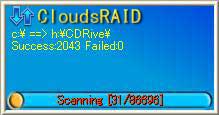
When CloudsRAID is minimized as a task tray icon, and some tasks are scheduled to start, if this check box is checked, the notification window like the above picture shows to display the progress and will fade out when finished. If this check box is not checked, the notification windows will not show, and the tray icon will be an animation icon.
Run scheduled task sequentially (Except the real-time task).
If this check box is checked, the tasks started by the schedule will be run one by one, i.e, the later started task will not be run until the previous task completes. Please note, if the task is started by the menu or toolbar button, it is run at once.
|
CloudsRAID Help
|
Home / Main Index / General Option |