CloudsRAID Help
|
CloudsRAID Help
|
Home / Main Index / Task Wizard |
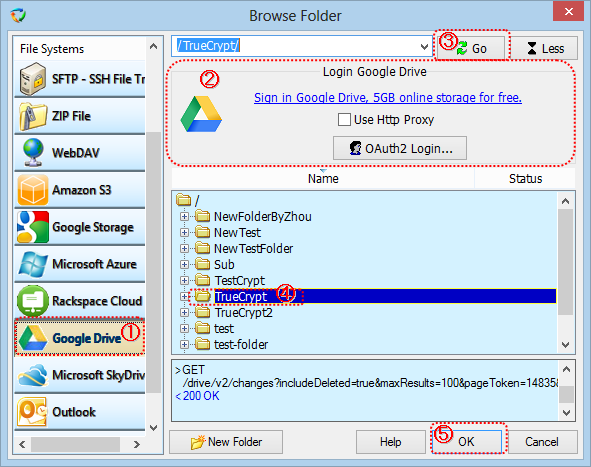
(1). Select "Google Drive" in the "File System" list.
If you have not got an account, you can click "Sign in Google Drive, 5GB online storage for free" link to apply a Google Account.
(2). Click "OAuth2 Login" button.
CloudsRAID opens the web browser for you to login Google drive, please input the Google account (an email address) and password to allow CloudsRAID to access your Google Drive.
Use http Proxy:
If the local computer is behind a firewall or NAT, usually the computer needs the proxy to connect to the Google Drive.
If this option is checked at the first time, the "http Proxy" dialog box will be popped up for setup up the http proxy server.
(3). After login Google Drive, press "Go" button to connect to the Google Drive, CloudsRAID lists folders in the Google Drive to the tree view.
The log window below the treeview logs all the commands sent to the Google Drive, and responses from the Google Drive. If the connection between CloudsRAID and Google Drive can not be established successfully, please check the log.
(4). Select the folder in the tree view.
(5). Click "OK"button to end the dialog box
|
CloudsRAID Help
|
Home / Main Index / Task Wizard |