CloudsRAID Help
|
CloudsRAID Help
|
Home / Main Index / Task Wizard |
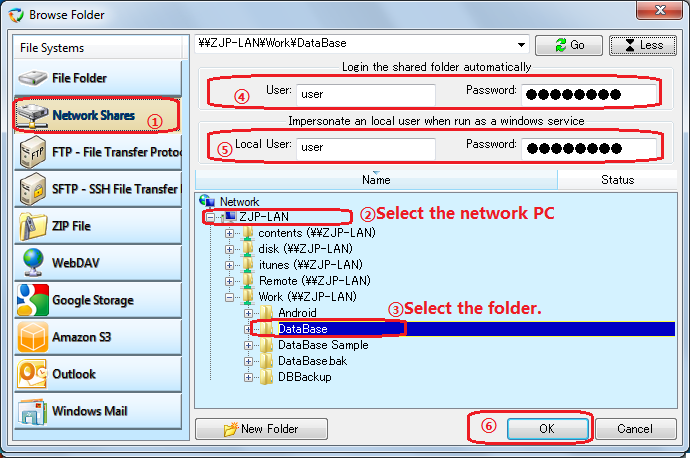
(1). Select "Network Shares" in the "File System" list.
The treeview searches the network PCs and the shared folders.
(2). Select the network PC in the tree view.
(3). Select the shared folder of sub-folder in the network PC.
If the network drive is not shown in the treeview, please input the network resource name directly into the combo-box, and click the
button to refresh the tree view. The format of the shared folder likes the following:
\\NetHost\SharedFolder\Folder\
"NetHost": the network name or IP address of the network computer.
"SharedFolder" the name of the shared folder.If the network folder is still no displayed in the treeview after press "Go" button. May be you can ignore this error, just click OK to end the browser to use the input folder.
(4). If you need CloudsRAID log on the network folder automatically, please input the name and password.
(5). If you need the task run as Windows Service (set the option later in the "Schedule" setting page), please input the user and password in the local PC. CloudsRAID need this local account to acquire the provilege form the system to access the network resource.
Please note: This method may consume multiple connections with the shared folder, and the task may meet "No more connections can be made to this remote computer because there are already as many connections as the computer can accept." error, and display "Drive is not ready" error in the task list. To avoid this problem, please leave user and password be empty, and setup the login account of CloudsRAID service like the following:
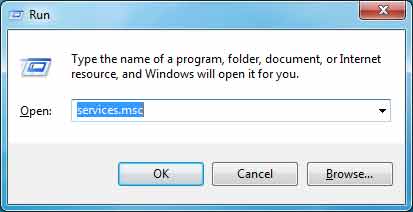
(5.1)Press "WIN+R" hot key, run "services.msc" to start "Services" manager:
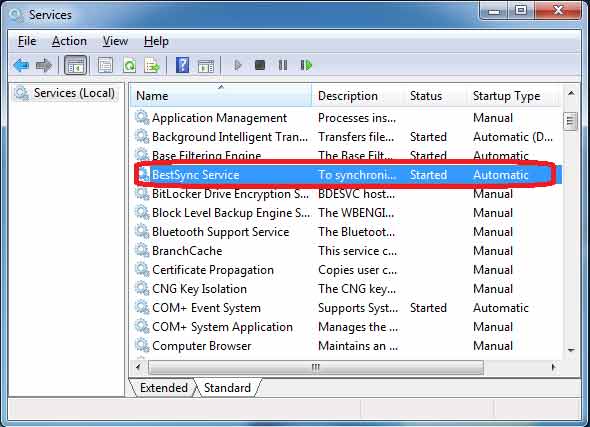
(5.2)Setup the logon account of CloudsRAID Service:
Select "CloudsRAID Service" in the service list:
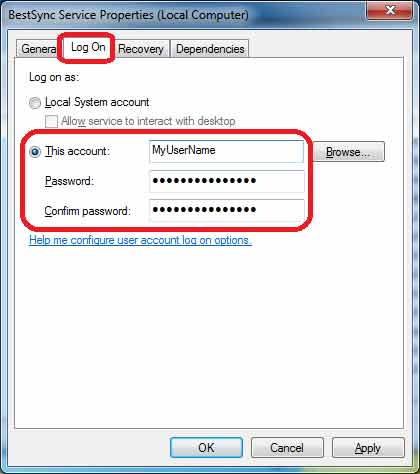
Double click "CloudsRAID Service" to show the property:
Setup a local account that CloudsRAID Service will run under it.(6). Click "OK" button to end the dialog box
|
CloudsRAID Help
|
Home / Main Index / Task Wizard |