CloudsRAID Help
|
CloudsRAID Help
|
Home / Main Index / Task Wizard |
NOTE:
(1). To synchronize with Outlook, you must have Outlook installed on the PC, and must have setup the email account for sending and receiving email.
(2). To synchronize Outlook 2003/2007/2010 32Bit, you must use CloudsRAID 32 Bit. To Synchronize Outlook 2010 64Bit, you must use CloudsRAID 64Bit.
(3). If you want to backup the Outlook .PST file, please select the "File Folder" in the "File Systems" list, and specify the setting folder of Outlook manually. And you need to check "Use Volume Shadow Copy Service..." option in the "Volume Shadow Copy" setting page.
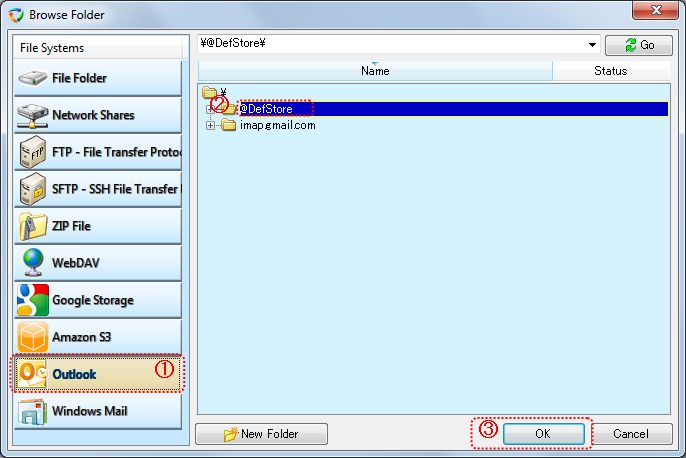
(1). Select "Outlook" in the "File System" list.
(2). After "@DefStore" node and other mail account profiles (if available), select the folder that you want to synchronize with.
Usually select "Outlook|\" or "Outlook|\@DefStore\". "Outlook|\@DefStore\" is the message store of the current login user. The default store includes with email, contact, task, schedule, note and journal.
(3). Click "OK" button to end the dialog box
CloudsRAID uses MAPI to synchronize Outlook in message level, only changed mails, contacts etc are synchronized to the target.
|
CloudsRAID Help
|
Home / Main Index / Task Wizard |