CloudsRAID Help
|
CloudsRAID Help
|
Home / Main Index / Task Wizard |
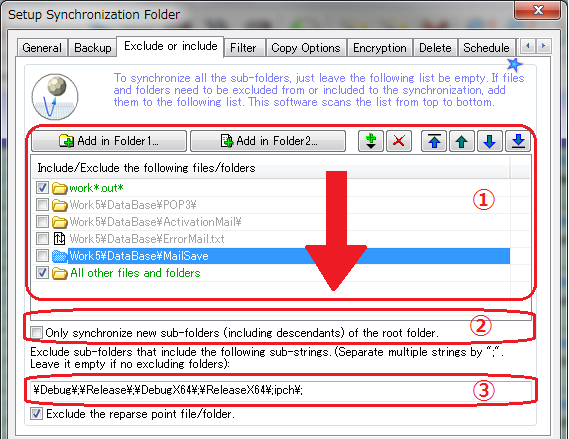
If sub-folders and files need to be excluded from or selected into the synchronization, you can add them to the list. all the folders and files need to be synchronized, just leave the list be empty.
Check the checkbox on the left side of the item to include the item into the synchronization; Un-check the checkbox to exclude the item from the synchronization.
Wildcard character *?# can be used to define the pattern. * represents any string; ? represents any one character; # represents one number.
For example:
Include files in a sub-folder and all its descendants folders that match multiple patterns:
Pressto "Add one file for edit"; then input the folder relative path and patterns. Multiple patterns are separated by semi-colon ";".
[x]SubFolder1\SubFolder2\A*.txt;B*.txtDate and time picture string can be used to exclude or include subfolders or files dynamically by the date and time.
For example:
<date:yyyyMMdd> means the date string of today.
<date:yyyyMMdd-1> means the date string of yesterday.
<date:yyyyMMdd-2> means the date string of the day before yesterday.CloudsRAID filters the files and folder in following 5 steps:
CloudsRAID scans the exclude/include list from top to bottom.
For a listed folder, if the checkbox is unchecked, the folder is excluded from the synchronization; if the checkbox is checked, CloudsRAID will also check step 2, 3, 4, 5. If the folder is excluded in any step, the filtering ends.
For a listed file, if the checkbox is unchecked, the file is excluded from the synchronization; if if the checkbox is checked, file is included into the synchronization. CloudsRAID will NOT check step 2, 3, 4, but step 5 will still be checked.
When meet "All other files and folders", the scanning ends. But Step 2, 3,4,5 will still be checked.
Buttons:
"Add in Folder1":
Press this button to start the explorer dialog box to select folders and files in the Folder1. If the synchronous target is a Outlook or Windows Mail, press this button to start the email explorer dialog box to select folders and mails.
"Add in Folder2":
Press this button to start the explorer dialog box to select folders and files in the Folder2. If the synchronous target is a FTP server, press this button to start the FTP explorer dialog box to select folders and files in the FTP server.
"Delete items":
Press this button to remove the selected folders and files from the list.
Press the
Press
buttons to adjust the order of the items.
Setting Hints:
1. Setup a task to synchronize only some sub-folders.
(1) Add the sub-folders that are to be synchronized to the list. Check the checkboxes.
(2) Click2. Setup a task to synchronize some designated sub-folders and new sub-folders of the root folder (Folder1 and Folder2).
(1) Add the sub-folders that are to be synchronized to the list. Check the checkboxes.
(2) Check "Only synchronize new sub-folders (include descendants) of the root folder".Exclude sub-folders that include the following sub-strings. (Separate multiple strings by ";". Leave it empty if no excluding folders):
The sub-folders are first filtered by above excluding or including list, if the sub-folders are not excluded by above conditions, sub-folders are filtered by this option. If a sub-folder name includes one of the sub-strings specified here, it is excluded from the synchronization.
Multiple strings can be separated by semi-colon. For example:
"RECYCLER;System Volume Information;temp;mid"The filtering string can include the path separator '\', for example, to filter all the folder called "temp" and "tmp",
"\temp\;\tmp\"To exclude all the subfolders that begin with ABC, can set the filtering string like the following:
"\ABC;"To exclude all the subfolders that end with ABC, can set the filtering string like the following:
"ABC\;"Exclude the reparse point file/folder:
In windows VISTA/7/Server 2008, the 'special' folders, such as "My Documents", "Application Data" are Reparse Points. The reparse points may nest itself, such as "C:\Users\UserName\AppData\Local\Application Data\
" folder. If you do not want to synchronize the reparse point, you can check this option. CloudsRAID excludes nested Reparse Points automatically.HINT:
Include or exclude a whole subfolder dynamically:
If you put a mark file named "_cloudsraid_exclude_this_folder_._exclude_" into a subfolder, CloudsRAID will exclude the subfolder from the synchronization. Later if you need to synchronize the subfolder, just delete the mark file. In real-time sync mode, if you delete the mark file, the subfolder will be synchronized immediately.
Note: In real-time sync mode, if a subfolder is renamed, the subfolder will still be renamed immediately in another side even if a mark file exist in the sub-folder.
|
CloudsRAID Help
|
Home / Main Index / Task Wizard |